Wireless Android Auto and AABrowser: Going Cable-Free Without the Headaches
Wireless Android Auto removes the small daily friction of the cable: get in, start the car, and the phone in your pocket connects itself. For AABrowser users, that means the browser is simply there on the head unit whenever a parked moment offers itself, with no plugging ritual first. For an overview of the app, see AABrowser APK download.
Cable-free is not cost-free, though. Wireless connections ask more of the phone's battery, depend on the car's and phone's Wi-Fi hardware, and are not supported by every vehicle that runs wired Android Auto. Knowing whether your setup qualifies saves a frustrating evening.
This guide covers the requirements, the first-connection process, living with battery and heat realities, and the fixes for the wireless problems owners actually meet.
Check Wireless Compatibility First
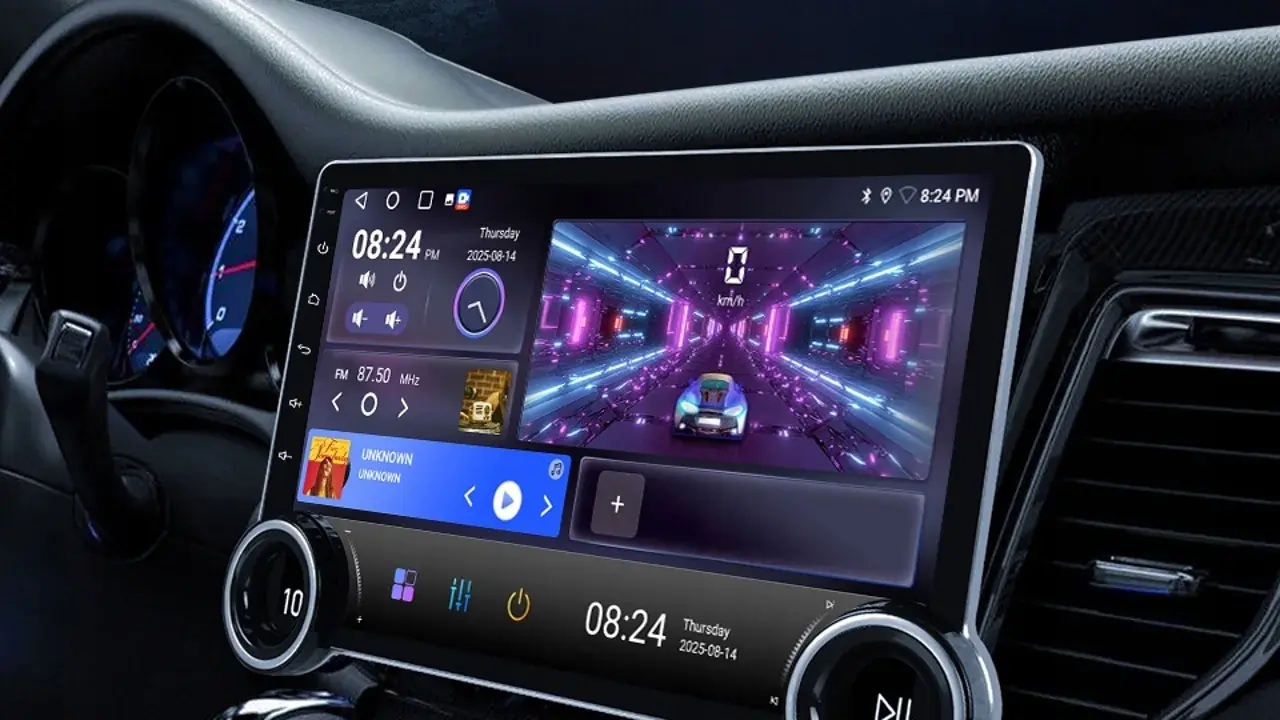
Wireless Android Auto needs a compatible phone, a head unit that supports wireless projection, and Wi-Fi hardware in the car; many older systems are wired-only regardless of the phone.
Check the car maker's specification for your exact model and year rather than assuming, because trim levels differ.
Aftermarket head units vary widely; a reputable unit that explicitly lists wireless Android Auto is the safe purchase. You can explore this in more depth in the Best Android Auto Head Units for AABrowser | Compatibility Guide.
Make the First Connection
The first wireless pairing usually begins with a cable or a Bluetooth pairing step, depending on the car, after which the system remembers the phone.
Keep the car's system and the phone updated before pairing; wireless stacks improve quietly through updates on both sides.
Once paired, test the full routine while parked: connection time, AABrowser appearing in the app list, and a page loading on the head unit.
Battery, Heat and Signal Realities
Wireless projection is steady work: the phone streams the display, holds Wi-Fi and Bluetooth, and runs the browser, all from its battery.
On long drives, a charging pad or a cable for power alone is the pragmatic hybrid: wireless for data, wired for electricity.
Heat slows phones down. A phone baking on a sunny dashboard will throttle and stutter, so shade and airflow matter as much as signal.
- Expect faster battery drain
- Charge on long journeys
- Keep the phone cool and shaded
- Wi-Fi quality decides stability
Wired vs Wireless: Choosing per Journey
Short trips favour wireless: the zero-effort connection is the entire point, and battery cost is trivial.
Long trips favour the cable for power and stability, with wireless as the convenience for quick stops along the way.
Many owners end up bilingual, and that is fine; Android Auto handles the switch as long as pairings are kept tidy.
Fix Common Wireless Problems
If the car stops auto-connecting, forget and re-pair the connection on both sides rather than toggling settings at random; a fresh pairing fixes most decayed setups.
Interference in dense areas can break connections momentarily; a reconnection that succeeds is normal behaviour, not a fault.
When AABrowser itself is missing after a wireless reconnect, check the Android Auto developer and unknown sources settings again, because system updates can reset them. There is a fuller walkthrough of this in the AABrowser Not Working? Fix Common Android Auto Issues.